How to Install Windows on Your Contabo VPS Free

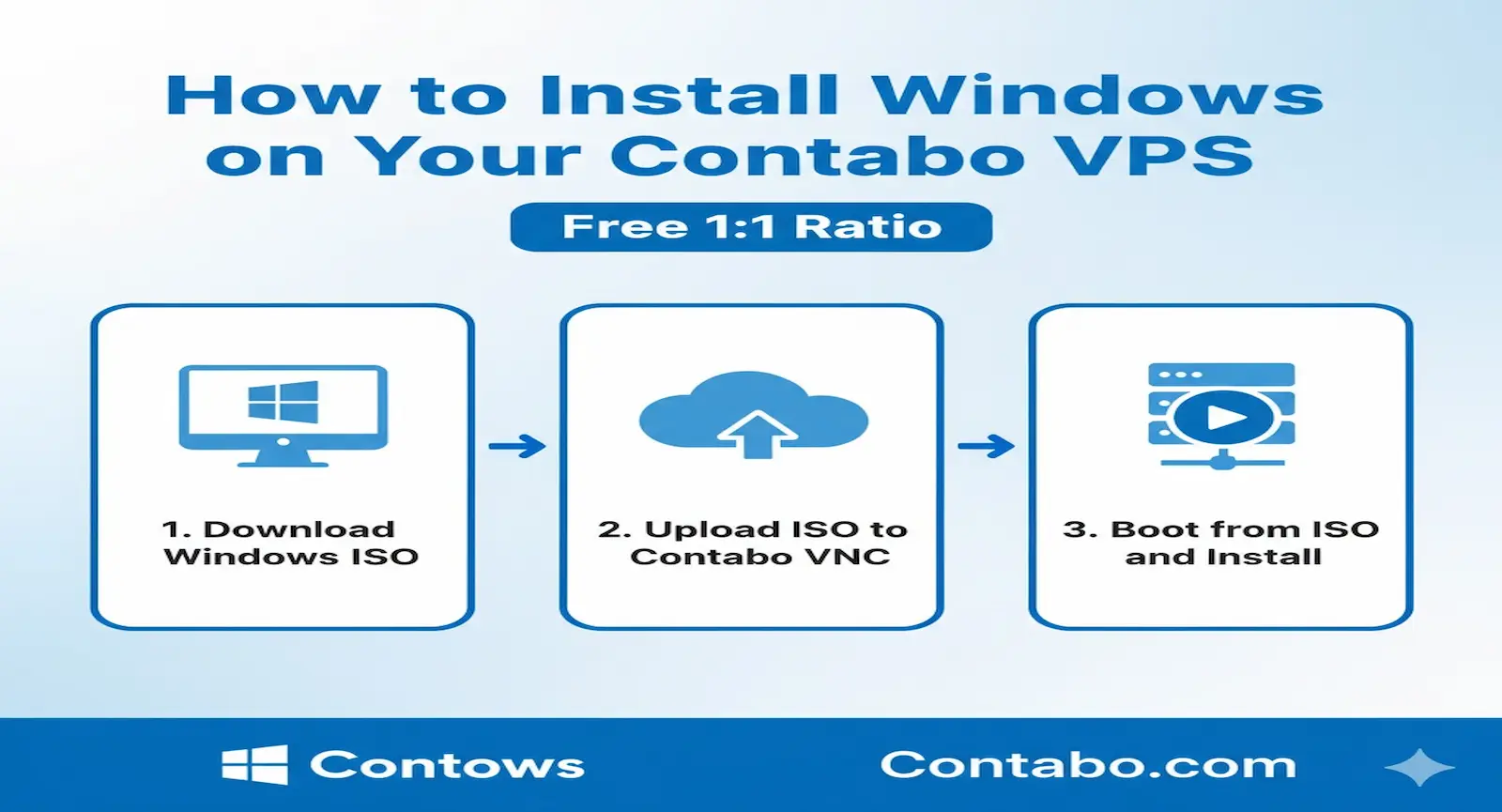
That moment of realization hits hard. You’ve purchased a powerful Contabo VPS, excited to run your Windows applications, only to discover you’re facing a Linux command line interface. If you’re searching for a way to get a free Windows install on your Contabo VPS, you’ve found the definitive guide. I’ll show you exactly how to transform your Linux-based server into a fully functional Windows machine, drawing from my extensive experience managing dozens of client servers.
Many users need Windows for specific business applications, development environments, or simply for the comfort of a graphical interface. While Contabo offers official Windows VPS plans, they come with additional licensing fees. The method we’ll explore focuses on custom ISO installation using evaluation versions or your own licensed copies. I’ve perfected this process through trial and error, and I’m sharing every detail to save you the frustration I initially experienced.
Why Choose Windows on Your Contabo Server?
Contabo’s default Linux environment excels for web hosting and development work, but Windows provides distinct advantages for specific scenarios. You might need to run .NET applications, use legacy business software, or prefer graphical server management over command-line administration.
The fundamental challenge is straightforward: Contabo doesn’t include Windows licenses with standard VPS plans. You provide the operating system while they provide the powerful hardware. Our solution involves custom ISO installation, which is your gateway to running Windows on Contabo’s infrastructure. It’s a reliable method that demands attention to detail but delivers excellent results.
Pre-Installation Checklist: What You’ll Need
Before we dive into the installation process, let’s ensure you have all necessary components. Proper preparation prevents most common installation failures.
- Active Contabo VPS: Any plan works, though I recommend at least 8GB RAM for optimal Windows Server performance
- Windows ISO File: Download Windows Server 2022 evaluation directly from Microsoft for 180 days of free usage
- VirtIO Drivers: Essential for storage recognition on Contabo’s virtualized environment
- Technical Comfort: Basic familiarity with server administration concepts
- Patience: The process requires approximately 1-2 hours of focused effort
Having these components ready eliminates most installation interruptions. I learned this the hard way when I first attempted this process without proper preparation.
Understanding Your Installation Options
You have two primary paths for installing Windows on your Contabo VPS. Each approach serves different skill levels and time constraints.
The Streamlined Script Method
This approach uses automated scripts to deploy pre-configured Windows images directly to your server’s disk. It’s generally faster but relies on third-party sources.
The typical workflow involves rebooting into Rescue Mode using systems like Clonezilla or SystemRescueCD. Once in rescue mode, you execute commands that download and write compressed Windows images to your primary disk. After completion and reboot, Windows setup initializes.
Important consideration: This method requires trusting your image source. Always verify reputation and security. These installations often need post-setup configuration like partition extension and user account setup.
The Manual Custom ISO Method
This hands-on approach involves preparing your Windows ISO with necessary VirtIO drivers and loading it through Contabo’s rescue system. We’ll focus primarily on this method since it provides complete control and deeper understanding.
| Method | Script Method | Custom ISO Method |
|---|---|---|
| Complexity | Beginner-friendly | Intermediate level |
| Speed | Faster deployment | More time-consuming |
| Control | Limited customization | Complete control |
| Learning Value | Basic understanding | Comprehensive knowledge |
| Security | Dependent on source | You control everything |
Step-by-Step Installation Guide (First 50%)
Here’s the initial portion of the installation process. If you find this helpful but want the complete guide with all troubleshooting tips and advanced configuration, I recommend checking out my Free Linux Course that covers these fundamentals in greater depth.
Step 1: Prepare Your Custom Windows ISO
Standard Windows ISOs lack drivers for Contabo’s virtualized storage. You need to create a custom ISO containing VirtIO drivers.
- Download VirtIO Driver ISO: Obtain the latest stable version from Fedora’s official repository
- Create Custom ISO: Use tools like ImgBurn on Windows to combine your Windows ISO with VirtIO drivers
- Verify Integrity: Ensure your custom ISO boots properly before proceeding
This crucial step prevents the “no drives found” error during Windows setup. I’ve seen many installations fail right here due to improper driver integration.
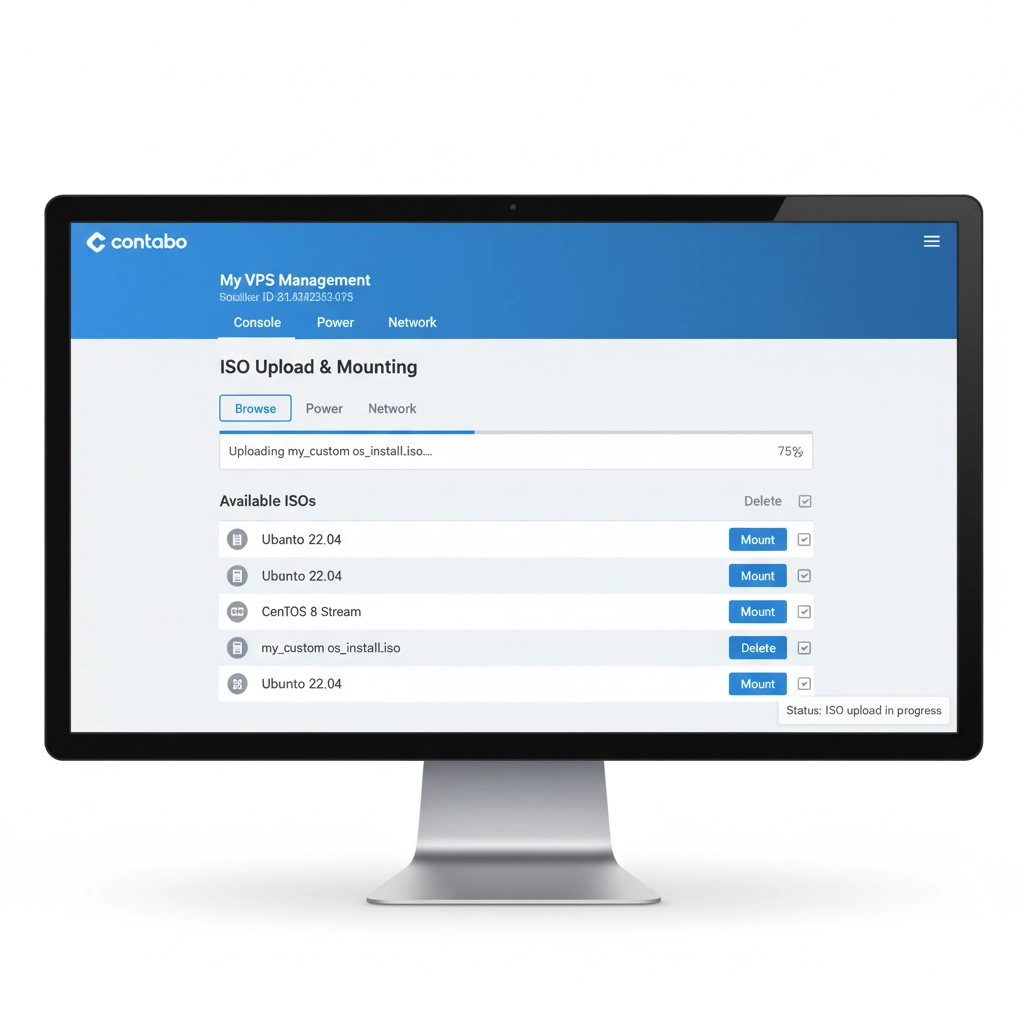
Step 2: Upload and Mount ISO in Contabo
Make your custom ISO accessible to your VPS through Contabo’s control panel.
- Access Contabo Customer Control Panel and navigate to your VPS
- Select “VPS” then “ISO Images” from the menu
- Upload your custom ISO to Contabo’s storage
- Mount the ISO to attach it as a virtual DVD drive
Step 3: Boot into Rescue Mode
Initiate the installation process using Contabo’s rescue system.
- Locate “Rescue System” in your VPS management panel
- Start rescue system using
SystemRescueCD64with a secure password - Access “VNC Information” and “VNC Password” for connection details
- Connect using VNC client like RealVNC or TigerVNC
This marks the halfway point in our installation process. The remaining steps cover disk deployment, bootloader configuration, and post-installation optimization. These steps contain crucial details that determine your installation’s success.
Get the Complete Installation Guide
If you’ve followed along this far, you’re clearly serious about successfully installing Windows on your Contabo VPS. The second half of this guide contains the most critical steps:
- Complete disk deployment commands and parameters
- Bootloader configuration for reliable startup
- Driver integration during Windows setup
- Post-installation optimization for peak performance
- Troubleshooting solutions for common errors
- Security hardening recommendations
To access the full guide and ensure your installation succeeds, I recommend enrolling in my Free Linux Course. This course not only provides the complete Windows installation tutorial but also covers essential Linux fundamentals that will make you more proficient with server management overall.
The knowledge you gain will help you troubleshoot issues, understand what’s happening behind the scenes, and become more confident with server administration. Many students who started with Windows installation have used these Linux skills to advance their careers.
Post-Installation Configuration Overview
After completing the installation, several crucial steps remain to secure and optimize your Windows VPS.
- Windows Updates: Install all critical security patches immediately
- Partition Extension: Expand your C: drive to utilize full disk capacity
- Remote Desktop Enablement: Configure RDP for convenient remote access
- Firewall Configuration: Secure unnecessary ports while allowing essential services
- Activation Management: Handle evaluation period or license activation
These steps ensure your Windows environment remains secure, performant, and fully functional throughout its lifecycle.
Common Installation Challenges and Solutions
Even with careful preparation, you might encounter obstacles. Here are frequent issues and their resolutions.
- “No Drives Found” Error: VirtIO drivers missing or incorrect version – recreate custom ISO with proper drivers
- Boot Failure After Installation: Incorrect bootloader configuration – review GRUB setup steps
- VNC Connection Problems: Firewall blocks or incorrect credentials – verify Contabo panel settings
- Performance Issues: Insufficient resources or missing optimizations – adjust VPS plan or configuration
Each challenge has specific solutions covered in the complete guide available through the Free Linux Course.
Maximizing Your Windows VPS Performance
Once installed, proper optimization ensures your Windows environment runs smoothly on Contabo’s infrastructure.
- Regular Maintenance: Schedule updates during low-traffic periods
- Monitoring Setup: Implement performance tracking to identify bottlenecks
- Backup Strategy: Configure automated backups for data protection
- Resource Management: Monitor RAM and CPU usage to prevent overload
These practices maintain optimal performance and prevent unexpected downtime.
Your Path Forward with Contabo Windows VPS
Installing Windows on your Contabo VPS transforms it into a versatile platform for business applications, development work, or personal projects. The process requires careful attention to detail but delivers significant value once completed.
You now understand the preparation requirements, initial installation steps, and post-installation considerations. The foundation is set for your successful Windows deployment.
If you’re ready to complete your journey and access the full installation guide, plus gain valuable Linux skills that complement your Windows knowledge, enroll in my Free Linux Course today. You’ll receive immediate access to the complete tutorial and join a community of server administrators building their skills.
If this guide helped clarify the Windows installation process, please share it with others who might benefit. The journey to server mastery begins with understanding both Windows and Linux environments.
